Accessibility in UX means designing products that people with disabilities can actually use comfortably. Many designers think accessibility is some "extra feature" added at the end. It's not. It's part of good design from the beginning, because a product is not truly usable if a large group of people struggles to access it.
Imagine entering a building - beautiful architecture, premium interiors, modern lighting. But there's only stairs. A wheelchair user can't enter independently. That building may look impressive, but it failed accessibility. Digital products work the same way: a UI can look stunning and still exclude people.
Accessibility Is Bigger Than Most People Think
It's not only for blind users. Accessibility also helps people with low vision, colorblind users, hearing-impaired users, those with motor difficulties, elderly users, people recovering from injuries, users in bright sunlight, users with weak internet, and tired or distracted users. Good accessibility usually improves UX for everyone.
Important Accessibility Guidelines
1. Maintain Proper Color Contrast
Text should be clearly readable against its background. Bad contrast causes eye strain, slower reading, and frustration. A common mistake: using very light gray text because it "looks modern." Readable always beats trendy.
2. Don't Rely Only on Color
"Required fields are marked in red" - what about colorblind users? Add labels, icons, and helper text. Use multiple signals, not just color.
3. Use Readable Font Sizes
Tiny text may look clean in Figma, but on actual phones it becomes painful - especially for elderly users, those with visual impairments, and users on smaller screens.
4. Make Buttons Easy to Tap
Tiny buttons frustrate users badly, especially on mobile. Good touch targets reduce accidental clicks and let users tap actions, close popups, and select options without struggle.
5. Add Clear Labels
Forms should clearly explain what to enter, what went wrong, and how to fix it. "Invalid input" is bad. "Password must contain at least 8 characters" reduces frustration.
6. Support Keyboard Navigation
Not everyone uses a mouse. Some users navigate with keyboard, assistive devices, or screen readers. Users should move through the interface logically using Tab, Enter, and arrow keys. A surprising number of websites still fail this.
7. Write Proper Alt Text
Images should include meaningful descriptions. "image.png" is bad alt text. "Woman booking a cab using a mobile app" helps screen readers explain visuals to blind users.
8. Avoid Excessive Motion
Heavy animations can trigger dizziness, nausea, and discomfort. Subtle motion improves UX; aggressive autoplay effects, flashing transitions, and parallax overload overwhelm users. Sometimes calm interfaces are more usable.
WCAG - The Main Accessibility Standard
Most digital accessibility guidelines come from the World Wide Web Consortium's WCAG (Web Content Accessibility Guidelines). It sounds technical, but the core philosophy is simple: make digital experiences usable for more humans.
Books Worth Reading

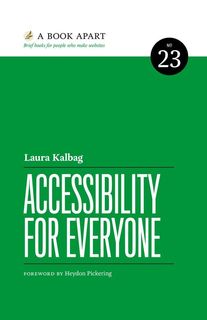
Accessibility is not about designing for 'special users.' It's about accepting a simple truth: not everyone experiences products the same way. And good design respects that.